

About this integration
Even without Embed, there is only minimal configuration required to get set up to process Google Pay. There is no need to sign up for a Google Developer account with this integration.For Android apps which use this option with
WebViews, please note that platform specific
Android Google Pay APIs must be invoked.
Please refer to Google’s FAQ for more
information.Enable Google Pay
To enable Google Pay, head over to your dashboard and then go to Connections -> Catalog -> Google Pay. Next, fill in your merchant name and merchant URL, and accept the Google Pay terms of service.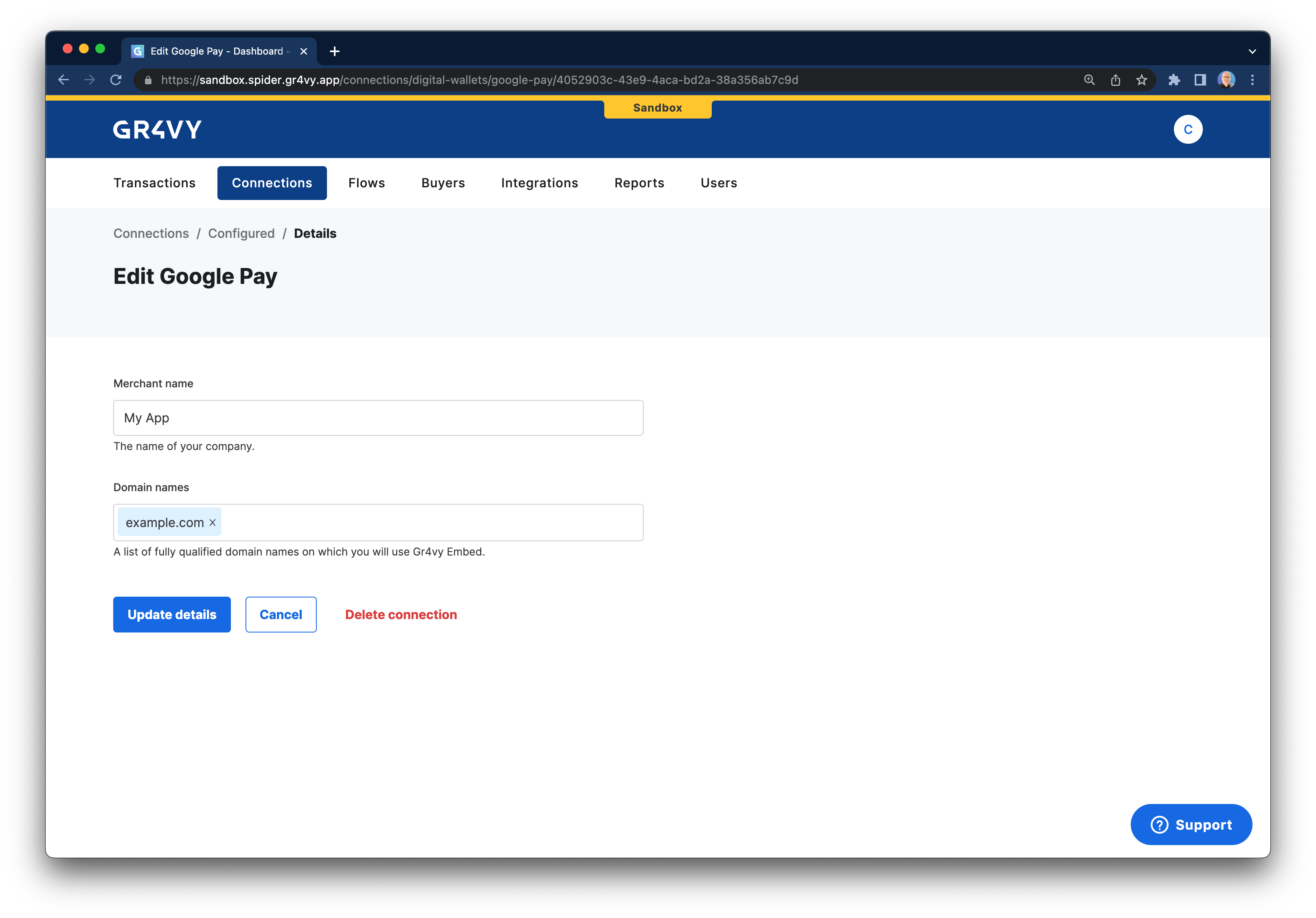
Integrate Google Pay
The following steps highlight the integration points with the system using Google’s tutorial for Google Pay.Fetch a Google Pay session
First, before you can render a Google Pay button, you need to call the API to get a token and your gateway ID. Call thePOST /digital-wallets/google/session API with the domain you want to host Google Pay on. This needs to be the full domain including any subdomains like www..
Set gateway and merchant ID
Next, in step 2 of Google’s tutorial you are instructed to request a payment token for your provider. In our case, the value forgateway needs to be set to gr4vy, and the value of gatewayMerchantId needs
to be set to the value you received from our session API in the previous step.
The instance ID is the unique identifier for the deployment of the system and is included in every API call.
Together with the environment (sandbox or production) it is used to connect to the right APIs, as well as dashboard.
Set the merchant info
Next, in step 8, you need to set amerchantInfo object. This authorizes accepting Google Pay on your domain.
When setting the merchantInfo object, make sure to set the token returned from the session API, your merchant name, the merchant ID, and the full domain you passed to the session API (including any subdomains like www.)
Create a transaction
In step 10 of Google’s tutorial, within theonPaymentAuthorized function
you will have a paymentData that needs to be sent to the gateway. You can send
this object to our POST /transactions endpoint either directly or via your server.
The payment method used needs to contain the data from the Google Pay payload.
Handle 3-D Secure
Always provide aredirect_url. When Google Pay returns a card saved in the buyer’s Google Account
(PAN_ONLY), Gr4vy processes it like any other card, so
3-D Secure can apply.
If the transaction returns the status buyer_approval_pending, redirect the buyer to the
payment_method.approval_url, even if no challenge is shown. Otherwise, the transaction fails when the
approval expires. After 3-D Secure, the buyer returns to the redirect_url with a transaction ID and status
appended (for example https://example.com/callback?gr4vy_transaction_id=123&gr4vy_transaction_status=capture_succeeded).
See handle a redirect.