

Setup
Request a Sezzle merchant account from the Sezzle merchant sign-up page.Credentials
To connect a Sezzle account, obtain the following credentials from the Sezzle dashboard under Settings > API Keys.- Public Key - The public API key for the Sezzle account.
- Private Key - The private API key for the Sezzle account.
- Web Checkout Origin (optional) - The origin of the page that shows the Sezzle button, for example
https://shop.example.com. Required only for the web integration. If you enter a full URL, only its scheme and host are used.
Webhooks
Sezzle sends the outcome of a payment plan as a webhook, and Gr4vy uses those events to move the transaction to its final state. Without a subscription, transactions stay inbuyer_approval_pending until they are synchronized.
Sezzle has no dashboard screen for webhook subscriptions, and Gr4vy does not register them for you,
so create the subscription yourself against Sezzle’s API. Do this once per Sezzle account, before
you take live traffic.
Start with the webhook URL for your Sezzle payment service, which is the webhook_url field on the
payment service in the Gr4vy dashboard and API. Each payment service has its own URL.
Exchange your Sezzle keys for a token, then create the subscription:
https://sandbox.gateway.sezzle.com and your sandbox keys when setting this up for a sandbox
environment.
Those four events are the ones Gr4vy acts on. Subscribing to others has no effect.
Sending a second subscription adds to the existing ones rather than replacing them, and Sezzle
delivers every event to each. Check what is already registered with
curl -H "Authorization: Bearer $TOKEN" https://gateway.sezzle.com/v2/webhooks before creating
another.Capabilities
Supported countries
Supported currencies
Limitations
- Standalone tokenization is not supported. A Sezzle payment method can only be stored as part
of a transaction the buyer approves. Set
storetotrueon transaction creation, as described in Subscriptions (MIT). - Multiple captures are not supported. An authorization can be captured once, in full or in part.
- Captures are batched. With
intentset tocapture, Sezzle queues the capture and completes it in a batch shortly afterwards. A refund requested before then fails withinvalid_amount. Retry the refund later, or authorize first and capture separately. - Disputes and chargebacks are not reported. Manage Sezzle disputes in the Sezzle dashboard.
- Settlement reporting is not supported. Sezzle transactions do not appear in the consolidated settlement report.
Integration
If you use Embed, Sezzle needs no integration work. Embed treats it as a redirect payment method and opens the Sezzle page in a popup. To integrate directly, choose anintegration_client when creating the transaction.
redirect, or nointegration_client: send the buyer to Sezzle’s hosted page. See Redirect integration.web: render the Sezzle button in your own checkout with Sezzle’s Express Checkout SDK. See Web: Sezzle Express Checkout SDK.iosandandroid: hand the checkout to Sezzle’s mobile SDK. See iOS and Android.
Redirect integration
Start by creating a new transaction with the following required fields.payment_method.approval_url and the status is set to buyer_approval_pending. The approval URL expires after 30 minutes.
approval_url in a popup so the buyer can set up their payment plan with Sezzle. After the
buyer approves, they are redirected to the redirect_url you provided when creating the
transaction. Do not rely solely on the redirect — either poll the transaction or (recommended) rely
on webhooks to detect the final status, for example authorization_succeeded or
capture_succeeded.
Cart items
Cart items are optional for Sezzle. When you send them, Gr4vy forwards the line items and any discounts to Sezzle, and Sezzle displays them on the plan setup page. Cart items do not have to add up to the transaction amount.Web: Sezzle Express Checkout SDK
Use this to put a Sezzle button inside your own checkout. The buyer sets up the plan in a popup opened by Sezzle’s Express Checkout SDK, and your page finalizes the transaction when Sezzle reports that the buyer is done. Before you start, set Web Checkout Origin on the Sezzle connection to the origin of your checkout page, as described in Credentials. Sezzle’s popup reports back only to the page on that origin. Without it, a transaction withintegration_client set to web fails with invalid_request_parameters
before Gr4vy contacts Sezzle.
- On page load, fetch the connection’s standalone session
to get the configuration for Sezzle’s SDK. This needs the
transactions.writescope, so call it from your server. It creates no transaction and makes no call to Sezzle.
apiMode is sandbox in a sandbox environment and live in production.
- Load Sezzle’s SDK, draw its button, then register the callbacks.
renderSezzleButton before init. init attaches the click handler to the button that
renderSezzleButton drew, and does nothing if the button isn’t there yet.
Pass the mode from the session to the SDK unchanged. Gr4vy creates the Sezzle checkout in popup mode,
and Sezzle requires the SDK mode to match it.
- When the buyer clicks the button, create the transaction with
integration_clientset toweb, then use itssession_tokento get the session data. Create the transaction on the click rather than ahead of time, so it carries the current order total. Sezzle’s SDK opens its popup on the click, so the work beforestartCheckoutdoesn’t trigger the browser’s popup blocker.
session_token.
- When
onCompletefires, send the buyer to thedefault_completion_url. Gr4vy confirms the order with Sezzle and then returns the buyer to theredirect_urlyou set on the transaction.
buyer_approval_pending until the buyer completes the plan and your page follows the
completion URL. If the buyer closes the popup, the transaction stays pending and expires after 30 minutes.
Use webhooks to follow the final status rather than relying on the buyer returning.
iOS and Android
Setintegration_client to ios or android, then hand the checkout to
Sezzle’s iOS or
Android SDK in its server-driven mode. Gr4vy creates
the Sezzle checkout, so the SDK needs no public key.
Gr4vy creates the checkout with Sezzle’s own SDK callback URLs, sezzle-sdk://checkout/confirmed and
sezzle-sdk://checkout/cancelled. Sezzle’s iOS and Android SDKs recognize these in both their system browser
mode and their web view mode, with no URL scheme to register in your app and none to have approved by Sezzle.
For these clients the transaction’s redirect_url isn’t sent to Sezzle.
Create the transaction as in the web flow, with integration_client
set to ios or android. Then use its session_token to get the session data.
checkout_url, complete_url and cancel_url to the SDK unchanged.
The Swift and Kotlin samples below are pseudocode: sessionData stands for the session your app fetched
from your backend. See Sezzle’s iOS and
Android documentation for the full SDK API.
Complete the transaction
When the buyer finishes, the SDK calls its completion callback. Send aGET request to the
default_completion_url. Gr4vy confirms the order with Sezzle and answers with 204 No Content. After
that, fetch the transaction to read its final status, or wait for the webhook.
onCheckoutCancel on Android. The transaction stays pending and expires after 30 minutes. To record the
cancellation straight away, send a GET request to the default_completion_url with cancel=true added
to its query string.
Subscriptions (MIT)
Sezzle supports storing the buyer’s payment method during the first (customer-present) payment and charging future renewals as merchant-initiated transactions (MIT) using the saved payment method, with no redirect.Storing a payment method relies on a webhook from Sezzle. Make sure the webhook subscription is in
place for your Sezzle account before using
store: true, as described in Webhooks.Buyer approval for reuse
Sezzle asks the buyer to approve reuse on its own hosted page, separately from any prompt in your checkout. Sezzle requires this for its own records, so it can’t be pre-selected or collected on your behalf. Settingstore to true is what makes Sezzle show the approval.
By default the buyer can finish the purchase without granting it. The payment still succeeds, but no
reusable payment method is created, so a checkout that offers the buyer the choice can leave you with
a stored payment method you can’t charge again.
To close that gap, ask Sezzle to make the approval mandatory for your merchant account. The buyer
then can’t complete the purchase without granting reuse, and the requirement applies only to
transactions where you set store to true. Sezzle is working on a way to set this per transaction
instead, which will remove the account-level step.
Either way, treat a stored Sezzle payment method as usable only once it reports a status of
succeeded. Don’t assume it from a successful payment.
First payment
Setstore to true to save the Sezzle payment method for the buyer. The buyer approves both the
payment and the stored payment method on the Sezzle hosted page.
Subsequent payment
After the payment method is saved, use the payment method ID to charge future renewals.- Set
payment_method.methodtoidand pass the saved payment method ID. - Set
payment_sourcetorecurring. - Set
merchant_initiatedandis_subsequent_paymenttotrue.
authorization_succeeded or capture_succeeded in the create response.
On-site messaging
Sezzle offers an On-Site Messaging Widget that displays the installment breakdown for an item on your product and cart pages, before the buyer reaches checkout. The widget is a script you add to your own site, configured with the merchant ID from your Sezzle dashboard. It is independent of the Gr4vy integration, and Gr4vy does not host or configure it.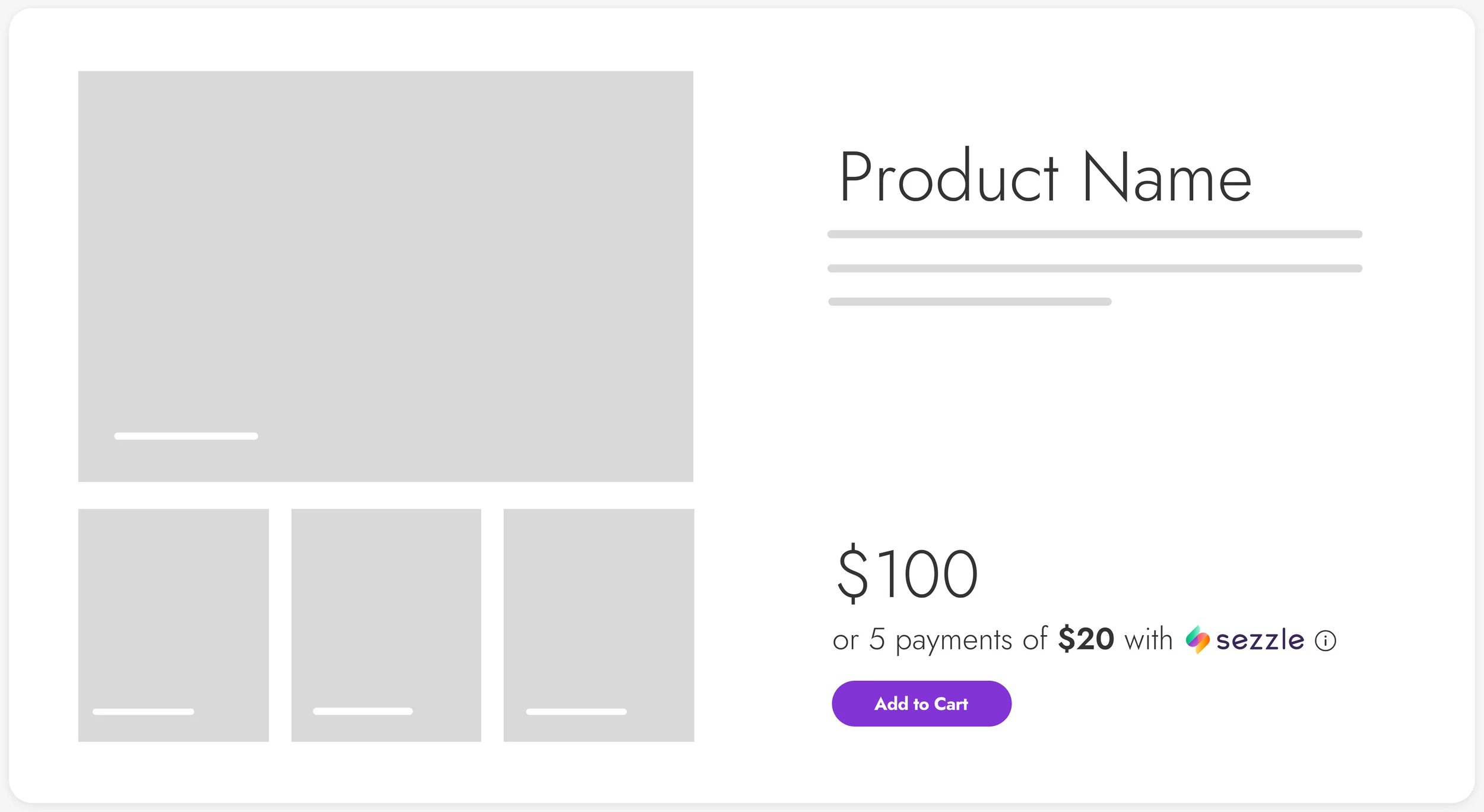
Sezzle On-Site Messaging Widget on a product page
Testing
Sezzle issues sandbox API keys separately from live keys. Generate them in the Sezzle sandbox dashboard, and configure them on a Gr4vy connection in your sandbox environment.Setting up a plan as a buyer
The Sezzle hosted page asks the buyer to sign in or create a Sezzle account. That account is separate from your Sezzle merchant account, and in sandbox every detail except the email address can be fictional.- Order total - Keep the transaction between
2000and250000(20.00 and 2,500.00 USD). Sezzle’s sandbox rejects totals outside that range. - Phone number - Any correctly formatted number. Sezzle validates the format but doesn’t send a message in sandbox.
- One-time password (OTP) - Always
123123, for both phone and email. - Social security number (SSN) - Use
123-54-6789to test an accepted plan, or987-65-4321to test a rejected one.
Test cards
Sezzle accepts the following card numbers in sandbox, with any future expiry date and any 3-digit security code. American Express uses a 4-digit security code. Prefer the Visa or Mastercard number when setting a default card, as described in Testing a stored payment method.Test bank accounts
When the buyer pays from a bank account instead of a card, use the following details.Testing a stored payment method
Sezzle runs its own risk and approval checks on every order, including orders charged against a stored payment method, and declines one where the buyer has no default card on file. A sandbox shopper account can reach that state even after completing the tokenization flow, which leaves you with a stored payment method that looks valid but declines on every charge. Before testing a merchant-initiated transaction, sign in to the shopper account at the Sezzle customer dashboard and set a default card, using the Visa or Mastercard number above. For further test values, see the Sezzle test cards.Common issues
A transaction stays in buyer_approval_pending after the buyer approves
A transaction stays in buyer_approval_pending after the buyer approves
Sezzle reports the outcome of a payment plan by webhook, and Gr4vy needs that event to move the
transaction to its final state. If no webhook subscription is registered against your Sezzle
account, the buyer completes the plan on Sezzle’s page and returns to your site, but the transaction
never leaves
buyer_approval_pending.Check the order in the Sezzle dashboard. If it shows as authorized there but not in Gr4vy, the
subscription is missing. See Webhooks.Synchronizing the transaction also resolves it, but that is a recovery step rather than a
substitute for the subscription.A charge against a stored payment method is declined
A charge against a stored payment method is declined
Sezzle runs its full risk, approval and good-standing checks on every order, including orders
charged against a stored payment method. One of those checks is that the buyer has a default card on
file with Sezzle, and an order from a buyer without one is declined.The stored payment method is still valid, so nothing about it signals the problem. The transaction
declines and the order shows as not approved on Sezzle’s side.Only the buyer can resolve this, by setting a default card in their Sezzle account. When testing,
set one on the sandbox shopper account as described in
Testing a stored payment method.
A stored payment method never becomes usable
A stored payment method never becomes usable
Sezzle asks the buyer to approve reuse on its own page, and the buyer can decline it while still
completing the purchase. When that happens the payment succeeds but no reusable payment method is
created, so the payment method stays unusable and later charges against it fail.Ask Sezzle to make the approval mandatory for your merchant account, as described in
Buyer approval for reuse. Until then, check that the payment method
reports a status of
succeeded before charging it again.A web transaction fails with invalid_request_parameters
A web transaction fails with invalid_request_parameters
The Sezzle connection has no Web Checkout Origin, or it isn’t an
http or https URL. Gr4vy needs it to
create a popup checkout, and rejects the transaction before contacting Sezzle. Set it to the origin of the
page that shows the Sezzle button, as described in Credentials.Sezzle's popup says to close the checkout and return to the store
Sezzle's popup says to close the checkout and return to the store
Sezzle’s popup reports the result only to a page on the connection’s Web Checkout Origin. If the Sezzle
button is on a different origin, for example
www.shop.example.com while the connection has
shop.example.com, the buyer completes the plan and then sees this message, and the order isn’t
finalized.Set Web Checkout Origin to the exact origin of the page that shows the button, including the scheme and
any www. prefix.Sezzle rejects the order amount
Sezzle rejects the order amount
Sezzle applies its own minimum and maximum order amounts, and rejects a transaction outside that
range with a message naming the limit. The limits depend on your account and on the buyer, so a
value that works for one buyer can be declined for another.In sandbox, keep the order total between
2000 and 250000 (20.00 and 2,500.00 USD). For live limits,
check with Sezzle.