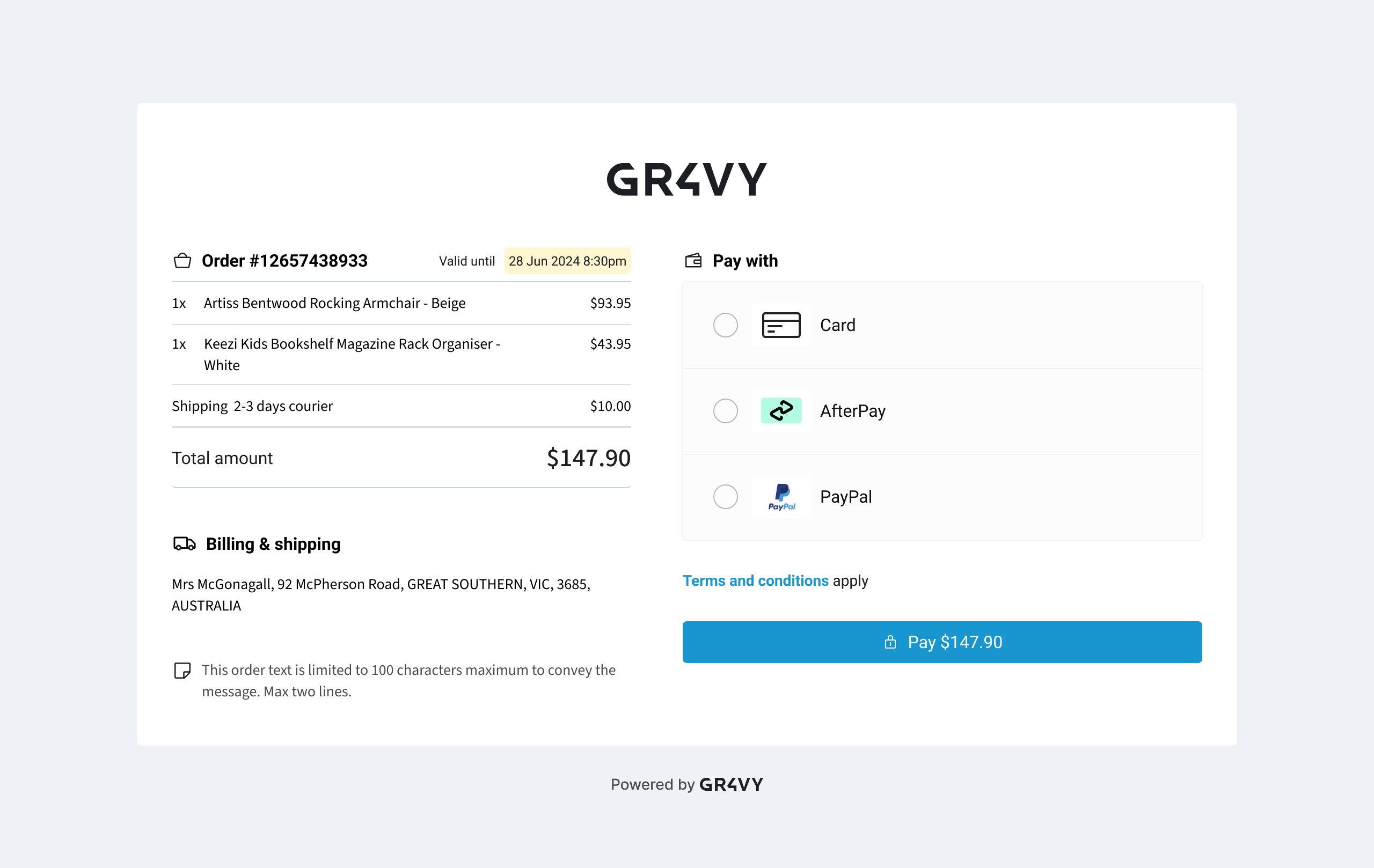
Set up payment links to accept payments from your customers.
Payment links allows generation of a link, to send to a customer via email/sms/etc,
and then have the customer pay without the need to host a custom checkout.
Use the payment links endpoint to create a payment link with the data displayed on the hosted page. The payment links API endpoint makes it
easy to get create a new payment link.
{ "currency":"AUD", "country":"AU", "amount":1000, "metadata":{ "TypeOfPayment":"purchase", "Carbon_FootPrint":"10" }, "cart_items":[ { "name":"Aloe", "unit_amount":1000, "quantity":1, "sku":"aloe" } ], "merchant_banner_url":"https://susies.store/logo.svg", "merchant_color":"#cf6b6b", "merchant_name":"Susie's Store", "merchant_url":"https://susies.store", "merchant_message":"Thanks for your purchase at Susie's Store!", "merchant_terms_and_conditions_url":"https://susies.store/terms-and-conditions", "return_url":"https://susies.store/success"}
The payment link includes the expires_at, status, and other useful information
used by the hosted page. Make note of the returned id as it is used in the next step.
The hosted page passes these fields to Embed, which uses them to create the transaction:
amount, currency, and country (required)
buyer
buyer_id
cart_items
connection_options
external_identifier
installment_count
intent
metadata
payment_source
statement_descriptor
store
These fields control the hosted page itself:
expires_at sets when the link expires. See expiration.
locale sets the language of the page.
return_url is where the page sends the customer once the transaction is created, whatever its outcome. Gr4vy appends gr4vy_transaction_id and gr4vy_transaction_status. Without it, the page shows its own confirmation screen.
merchant_name, merchant_url, merchant_banner_url, merchant_color, merchant_message, merchant_terms_and_conditions_url, and merchant_favicon_url brand the page. When you set both merchant_name and merchant_url, the success and expired screens show a Return to link with your merchant name that opens merchant_url.
Payment links don’t support airline data. The API rejects a request that includes an airline field. See the API reference for the full list of fields.By creating a payment link, send it to the customer to complete the payment.
Payment links don’t take a list of payment methods to show or hide. To control which methods
appear, set a metadata key on the payment link, for example {"link_type": "invoice"}, and add a
rule to the Checkout Flow with a
Metadata condition on that key. The rule then selects the payment options for those links. If no
rule matches, the page shows all configured and active payment options. Checkout Flow rules apply
to the whole merchant account, not just to payment links.
A payment link can be used to securely store a payment method against a buyer’s
profile. To do this, you need to pass both the buyer_id and store
parameters.When store is set to true, the buyer_id of an existing buyer must also be
provided. After the payment is completed, the payment method used is
stored and associated with that buyer.When store is true, the payment link page only shows payment methods that can be stored,
so some of the options you’ve configured might not appear.Currently, it is not possible to use a buyer’s existing stored payment methods
to complete a payment link.
When buyer_id is provided, the URL of the payment link should be treated as a secret as
it allows anyone the ability to manage payment methods for the associated buyer.
To list the transactions created through a payment link, call list transactions with the payment_link_id query parameter set to the id of the payment link.
GET /transactions?payment_link_id=09e90ace-a746-41f5-88d2-8b16335ded97
In the dashboard, go to Transactions > Payment links and open the payment link to see its transactions.
Assistant
Responses are generated using AI and may contain mistakes.