> ## Documentation Index
> Fetch the complete documentation index at: https://docs.gr4vy.com/llms.txt
> Use this file to discover all available pages before exploring further.
# PayPal
> Configure PayPal as a payment method in Gr4vy.
export const connector = {
id: "paypal-paypal",
displayName: "PayPal",
provider: "",
method: "paypal",
mode: "redirect",
category: "wallet",
features: "create_session create_token create_transaction deep_linking delayed_capture delete_token direct_integration_create multi_capture over_capture partial_capture partial_refunds payment_method_tokenization_toggle redirect_requires_popup refunds requires_webhook_setup settlement_reporting tracking_details transaction_sync verify_credentials void",
supportedCountries: "AD AE AG AI AL AM AO AR AT AU AW AZ BA BB BE BF BG BH BI BJ BM BN BO BR BS BT BW BY BZ CA CD CG CH CI CK CL CM CN CO CR CV CY CZ DE DJ DK DM DO DZ EC EE EG ER ES ET FI FJ FK FM FO FR GA GB GD GE GF GI GL GM GN GP GR GT GW GY HK HN HR HU ID IE IL IN IS IT JM JO JP KE KG KH KI KM KN KR KW KY KZ LA LC LI LK LS LT LU LV MA MC MD ME MG MH MK ML MN MQ MR MS MT MU MV MW MX MY MZ NA NC NE NF NG NI NL NO NP NR NU NZ OM PA PE PF PG PH PL PM PN PT PW PY QA RE RO RS RU RW SA SB SC SE SG SH SI SJ SK SL SM SN SO SR ST SV SZ TC TD TG TH TJ TM TN TO TT TV TW TZ UA UG US UY VA VC VE VG VN VU WF WS YE YT ZA ZM ZW",
supportedCurrencies: "AUD BRL CAD CHF CNY CZK DKK EUR GBP HKD HUF ILS INR JPY MXN MYR NOK NZD PHP PLN RUB SEK SGD THB TWD USD"
};
export const ConnectorRegions = ({data, kind, name: nameOverride}) => {
const [query, setQuery] = useState("");
const [open, setOpen] = useState(false);
const isCountries = kind === "countries";
const raw = data && (isCountries ? data.supportedCountries : data.supportedCurrencies);
const codes = typeof raw === "string" ? raw.split(/\s+/).filter(Boolean) : Array.isArray(raw) ? raw : [];
const DISPLAY_NAME_OVERRIDES = {
authorizenet: "Authorize.net",
cardpointe: "CardPointe",
cybersource: "Cybersource",
dlocal: "dLocal",
shift4i4go: "Shift4 i4go",
tokenex: "TokenEx"
};
const rawName = data && data.displayName || "";
const name = nameOverride || DISPLAY_NAME_OVERRIDES[rawName.toLowerCase()] || rawName || "This connector";
const verb = isCountries ? "supports transactions from buyers in" : "supports processing payments in";
const noun = isCountries ? "countries" : "currencies";
if (codes.length === 0) return null;
const unrestricted = codes.length >= (isCountries ? 200 : 150);
const disclaimer =
This list is for guidance only. It doesn't guarantee availability or
create any rights, and the provider must also enable each of these {noun}{" "}
for your account.
This list is for guidance only. It doesn't guarantee availability or
create any rights, and the provider may need to enable some features for
your account.
;
};
PayPal is a digital wallet that enables buyers to pay using their PayPal balance, bank accounts, or cards. It provides a trusted payment experience with buyer protection and is widely recognized by consumers worldwide.
## Setup
Follow the [PayPal setup instructions](./paypal) before configuring PayPal payments.
### Vaulting
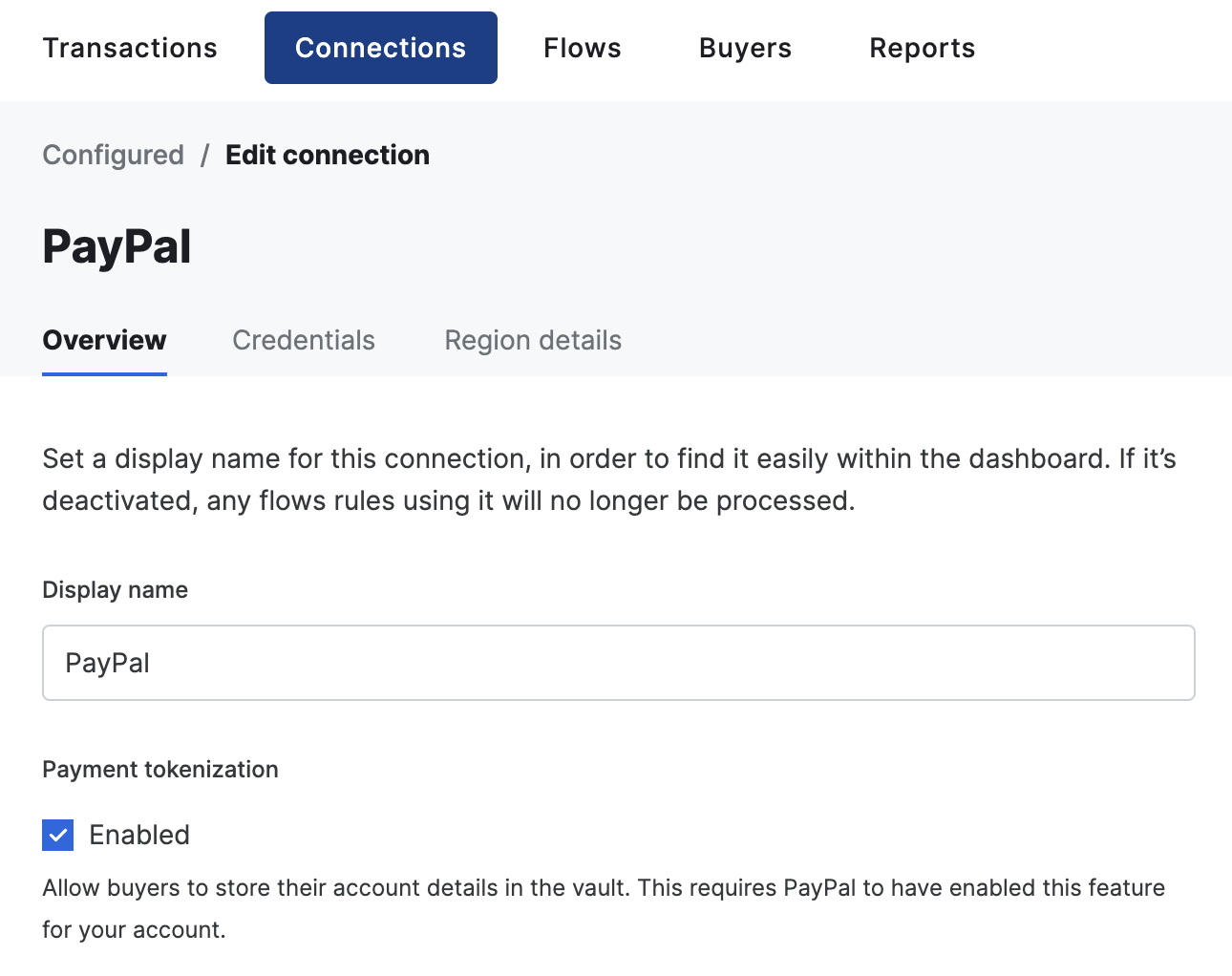
To allow customers to tokenize their PayPal account for future payments, you need to contact PayPal and request that your account be enabled for **Vault**.
Once Vault has been enabled on your PayPal merchant account, you can toggle the tokenization feature on within the PayPal connector settings in the dashboard.
Storing PayPal accounts depends on PayPal's vault webhooks. Subscribe your PayPal webhook to the `VAULT.PAYMENT-TOKEN.*` events listed in [Webhooks](/connections/payments/paypal#webhooks) before you go live.
#### Stored PayPal accounts
When a transaction stores the buyer's PayPal account with `store: true`, the payment method starts with the status `processing`. It moves to `succeeded` when PayPal confirms that it has vaulted the account, which PayPal does with the `VAULT.PAYMENT-TOKEN.CREATED` webhook. This confirmation can arrive after the transaction completes, with no guaranteed timing. If no confirmation arrives within 8 days, the payment method moves to `failed`.
Gr4vy doesn't send a webhook when a stored payment method becomes ready, and it only accepts transactions on a stored payment method with the status `succeeded`. Before a merchant-initiated payment, [get the payment method](/reference/payment-methods/get-payment-method) and check its status. See [payment method statuses](/guides/api/statuses/payment-methods).
#### Canceled PayPal accounts
A buyer can cancel the automatic payments they agreed to from within their PayPal account. After that, PayPal rejects charges on the stored account, and the transaction fails with the error code `insufficient_service_permissions`. Retrying the payment doesn't help. Ask the buyer to link their PayPal account again in a new transaction with `store: true`.
When your webhook subscribes to `VAULT.PAYMENT-TOKEN.DELETED` and `VAULT.PAYMENT-TOKEN.DELETION-INITIATED`, Gr4vy deletes the payment method when PayPal reports the cancellation and sends a `payment-method.deleted` webhook, so you know to stop charging it.
### Ingest billing and shipping details
By default, billing, and shipping details received from PayPal are not imported. To enable this feature, head over to **Connections** → **Configured** and select your PayPal connector. Next, go to **Credentials** and toggle **Import billing details** and/or **Import shipping details**.
When **Import billing details** is enabled, any of the user's name, email address, and billing address are automatically imported into your transaction, merging it with any data already present on the transaction. Linked buyers are not updated, but only the snapshot of the buyer on the transaction.
When **Import shipping details** is enabled, the user's shipping address is automatically **requested** and imported into your transaction, merging it with any data already present on the transaction. Linked buyers are not updated, but only the snapshot of the buyer on the transaction.
The ingestion of billing and shipping details is not available for tokenized payments.
### Server-side shipping callbacks
When **Import shipping details** is enabled, you can configure PayPal to call your server whenever the buyer changes their shipping address or selects a different shipping option during checkout. This lets you return updated shipping costs and available options in real time.
To enable this, pass `order_update_callback_config` in `connection_options["paypal-paypal"]` when creating a transaction:
| Field | Description |
| - | - |
| `callback_url` | The URL PayPal calls when the buyer updates their shipping details. |
| `callback_events` | Array of events to subscribe to. `"SHIPPING_ADDRESS"` fires when the buyer changes their shipping address; `"SHIPPING_OPTIONS"` fires when they change their selected shipping option. |
When `order_update_callback_config` is set and shipping ingestion is enabled, Gr4vy sets the PayPal `shipping_preference` to `GET_FROM_FILE` so the buyer's shipping details flow through your callback endpoint rather than being provided upfront.
```csharp C# theme={"system"}
var transaction = await client.Transactions.CreateAsync(
transactionCreate: new TransactionCreate()
{
Amount = 1299,
Currency = "USD",
Country = "US",
PaymentMethod =
TransactionCreatePaymentMethod.CreateRedirectPaymentMethodCreate(
new RedirectPaymentMethodCreate()
{
Method = "paypal",
Country = "US",
Currency = "USD",
RedirectUrl = "https://example.com/callback",
}
),
ConnectionOptions = new Dictionary()
{
["paypal-paypal"] = new Dictionary()
{
["order_update_callback_config"] = new Dictionary()
{
["callback_url"] = "https://example.com/shipping-callback",
["callback_events"] = new List { "SHIPPING_ADDRESS", "SHIPPING_OPTIONS" },
}
}
}
}
);
```
```go Go theme={"system"}
amount := int64(1299)
currency := "USD"
country := "US"
method := components.RedirectPaymentMethodCreateMethodPaypal
redirectUrl := "https://example.com/callback"
redirectPaymentMethodCreate := components.RedirectPaymentMethodCreate{
Method: method,
Country: country,
Currency: currency,
RedirectURL: redirectUrl,
}
paymentMethod := components.CreateTransactionCreatePaymentMethodRedirectPaymentMethodCreate(redirectPaymentMethodCreate)
transactionCreate := components.TransactionCreate{
Amount: amount,
Currency: currency,
Country: &country,
PaymentMethod: &paymentMethod,
ConnectionOptions: map[string]interface{}{
"paypal-paypal": map[string]interface{}{
"order_update_callback_config": map[string]interface{}{
"callback_url": "https://example.com/shipping-callback",
"callback_events": []string{"SHIPPING_ADDRESS", "SHIPPING_OPTIONS"},
},
},
},
}
transaction, err := client.Transactions.Create(ctx, transactionCreate, nil, nil, nil)
```
```java Java theme={"system"}
CreateTransactionResponse transactionResponse = gr4vyClient.transactions().create()
.transactionCreate(TransactionCreate.builder()
.amount(1299L)
.currency("USD")
.country("US")
.paymentMethod(TransactionCreatePaymentMethod.of(RedirectPaymentMethodCreate.builder()
.method(RedirectPaymentMethodCreateMethod.PAYPAL)
.country("US")
.currency("USD")
.redirectUrl("https://example.com/callback")
.build()))
.connectionOptions(Map.of(
"paypal-paypal", Map.of(
"order_update_callback_config", Map.of(
"callback_url", "https://example.com/shipping-callback",
"callback_events", List.of("SHIPPING_ADDRESS", "SHIPPING_OPTIONS")
)
)
))
.build())
.call();
Transaction transaction = transactionResponse.transaction().orElse(null);
```
```php PHP theme={"system"}
$transactionCreate = new TransactionCreate(
amount: 1299,
currency: 'USD',
country: 'US',
paymentMethod: new RedirectPaymentMethodCreate(
method: 'paypal',
country: 'US',
currency: 'USD',
redirectUrl: 'https://example.com/callback'
),
connectionOptions: [
'paypal-paypal' => [
'order_update_callback_config' => [
'callback_url' => 'https://example.com/shipping-callback',
'callback_events' => ['SHIPPING_ADDRESS', 'SHIPPING_OPTIONS'],
]
]
]
);
$response = self::$sdk->transactions->create($transactionCreate);
$transaction = $response->transaction;
```
```python Python theme={"system"}
transaction: models.Transaction = client.transactions.create(
amount=1299,
currency="USD",
country="US",
payment_method={
"method": "paypal",
"country": "US",
"currency": "USD",
"redirect_url": "https://example.com/callback",
},
connection_options={
"paypal-paypal": {
"order_update_callback_config": {
"callback_url": "https://example.com/shipping-callback",
"callback_events": ["SHIPPING_ADDRESS", "SHIPPING_OPTIONS"],
}
}
}
)
```
```ts TypeScript theme={"system"}
const transaction = await gr4vy.transactions.create({
amount: 1299,
currency: "USD",
country: "US",
paymentMethod: {
method: "paypal",
country: "US",
currency: "USD",
redirectUrl: "https://example.com/callback"
},
connectionOptions: {
"paypal-paypal": {
order_update_callback_config: {
callback_url: "https://example.com/shipping-callback",
callback_events: ["SHIPPING_ADDRESS", "SHIPPING_OPTIONS"],
}
}
}
})
```
### Checkout experience
You can customize the PayPal Checkout page by passing any of the following fields in `connection_options["paypal-paypal"]` when creating a transaction.
| Field | Description |
| - | - |
| `user_action` | Controls the label on the PayPal Checkout button. `"PAY_NOW"` (default) shows an immediate pay button; `"CONTINUE"` shows a continue button for deferred-payment flows. |
| `shipping_preference` | Controls how the shipping address is sourced during checkout. `"NO_SHIPPING"` hides the shipping address fields; `"GET_FROM_FILE"` lets the buyer provide or change their address during checkout; `"SET_PROVIDED_ADDRESS"` pre-fills the address you supplied and prevents the buyer from changing it. When omitted, Gr4vy determines this value automatically (see the note below). |
| `brand_name` | The merchant brand name displayed on the PayPal Checkout page. Maximum 127 characters. |
| `landing_page` | The page shown to the buyer when they arrive at PayPal. `"LOGIN"` opens the PayPal login page; `"GUEST_CHECKOUT"` opens the guest checkout page; `"NO_PREFERENCE"` lets PayPal decide. |
| `locale` | A BCP 47 locale tag used to localize the PayPal Checkout page, for example `"en-US"` or `"fr-FR"`. |
`"GUEST_CHECKOUT"` for `landing_page` only takes effect if **PayPal account optional** is enabled in your PayPal merchant account settings. If the setting is not enabled, PayPal falls back to showing the login page regardless.
`locale` is a hint to PayPal and may not always be honored. PayPal also determines locale from the buyer's browser cookies and the configuration of its own SDK, so the effective locale can differ from the value you provide.
```csharp C# theme={"system"}
ConnectionOptions = new Dictionary()
{
["paypal-paypal"] = new Dictionary()
{
["user_action"] = "PAY_NOW",
["shipping_preference"] = "GET_FROM_FILE",
["brand_name"] = "Acme Store",
["landing_page"] = "LOGIN",
["locale"] = "en-US",
}
}
```
```go Go theme={"system"}
ConnectionOptions: map[string]interface{}{
"paypal-paypal": map[string]interface{}{
"user_action": "PAY_NOW",
"shipping_preference": "GET_FROM_FILE",
"brand_name": "Acme Store",
"landing_page": "LOGIN",
"locale": "en-US",
},
},
```
```java Java theme={"system"}
.connectionOptions(Map.of(
"paypal-paypal", Map.of(
"user_action", "PAY_NOW",
"shipping_preference", "GET_FROM_FILE",
"brand_name", "Acme Store",
"landing_page", "LOGIN",
"locale", "en-US"
)
))
```
```php PHP theme={"system"}
connectionOptions: [
'paypal-paypal' => [
'user_action' => 'PAY_NOW',
'shipping_preference' => 'GET_FROM_FILE',
'brand_name' => 'Acme Store',
'landing_page' => 'LOGIN',
'locale' => 'en-US',
]
]
```
```python Python theme={"system"}
transaction = client.transactions.create(
amount=1299,
currency="USD",
country="US",
payment_method={
"method": "paypal",
"country": "US",
"currency": "USD",
"redirect_url": "https://example.com/callback",
},
connection_options={
"paypal-paypal": {
"user_action": "PAY_NOW",
"shipping_preference": "GET_FROM_FILE",
"brand_name": "Acme Store",
"landing_page": "LOGIN",
"locale": "en-US",
}
}
)
```
```ts TypeScript theme={"system"}
const transaction = await gr4vy.transactions.create({
amount: 1299,
currency: "USD",
country: "US",
paymentMethod: {
method: "paypal",
country: "US",
currency: "USD",
redirectUrl: "https://example.com/callback",
},
connectionOptions: {
"paypal-paypal": {
user_action: "PAY_NOW",
shipping_preference: "GET_FROM_FILE",
brand_name: "Acme Store",
landing_page: "LOGIN",
locale: "en-US",
},
},
});
```
`shipping_preference` is automatically determined by Gr4vy when not set. It is set to `GET_FROM_FILE` when `order_update_callback_config` is set and shipping ingestion is enabled, `SET_PROVIDED_ADDRESS` when a shipping address is supplied on the transaction, and `NO_SHIPPING` otherwise. Setting `shipping_preference` explicitly overrides this automatic behavior.
### Payment receiving preferences
By default, PayPal only settles payments automatically if the payment is in the primary currency of the PayPal merchant account. If you need to accept payments in additional currencies, you need to open a PayPal account balance in each of the currencies you intend to accept. Alternatively, you can configure your PayPal merchant account to automatically convert payments into the primary currency.
If you receive a payment in a currency that your PayPal merchant account is not configured to accept, the payment enters a pending state and you need to log in to the PayPal merchant dashboard to trigger settlement, either by opening the required currency balance, or converting the payment into the primary currency of your PayPal account.
Payments left in a pending state are eventually reversed by PayPal.
### FraudNet
FraudNet is a PayPal-developed JavaScript library that collects browser-based data to help reduce fraud. Upon checkout, the FraudNet library sends data elements to PayPal Risk Services for fraud and risk assessment.
When creating transactions, the PayPal FraudNet library must be included on the checkout page for all transactions. When using Embed, the PayPal FraudNet library is included automatically. If you are using the API directly, you need to use the [device fingerprinting library](../../guides/features/anti-fraud/fingerprint) which includes the PayPal FraudNet library.
### Shipment tracking
When you include [shipment tracking](/guides/features/shipment-tracking/overview) details on a capture, Gr4vy adds them to the PayPal order. PayPal has no field for a tracking URL, so the `url` value isn't forwarded.
PayPal also de-duplicates tracking details. If you send two entries with the same `number` and `carrier`, the PayPal order shows a single tracking entry.
Adding tracking is best effort. If PayPal rejects a tracking entry, the capture still succeeds and Gr4vy keeps the tracking on the capture. The failed request appears in the transaction's events.
## Capabilities
## Supported countries
## Supported currencies
## Integration
For PayPal, the default integration is through a redirect to PayPal's hosted checkout page.
You can choose between two integrations:
* **Redirect**: The default. The buyer leaves your page for PayPal's hosted checkout page and returns to your `redirect_url`. This is the only integration that Embed supports.
* **Direct**: PayPal's own button and checkout run on your page or in your app, including App Switch on mobile. It uses the same PayPal connection, with no extra configuration in Gr4vy. You select it per transaction with `integration_client`. See [Direct integration](#direct-integration).
For the redirect integration, start by creating a new transaction with the following required fields.
```csharp C# theme={"system"}
var transaction = await client.Transactions.CreateAsync(
transactionCreate: new TransactionCreate()
{
Amount = 1299,
Currency = "USD",
Country = "US",
PaymentMethod =
TransactionCreatePaymentMethod.CreateRedirectPaymentMethodCreate(
new RedirectPaymentMethodCreate()
{
Method = "paypal",
Country = "US",
Currency = "USD",
RedirectUrl = "https://example.com/callback",
}
),
}
);
```
```go Go theme={"system"}
amount := int64(1299)
currency := "USD"
country := "US"
method := components.RedirectPaymentMethodCreateMethodPaypal
redirectUrl := "https://example.com/callback"
redirectPaymentMethodCreate := components.RedirectPaymentMethodCreate{
Method: method,
Country: country,
Currency: currency,
RedirectURL: redirectUrl,
}
paymentMethod := components.CreateTransactionCreatePaymentMethodRedirectPaymentMethodCreate(redirectPaymentMethodCreate)
transactionCreate := components.TransactionCreate{
Amount: amount,
Currency: currency,
Country: &country,
PaymentMethod: &paymentMethod,
}
transaction, err := client.Transactions.Create(ctx, transactionCreate, nil, nil, nil)
```
```java Java theme={"system"}
CreateTransactionResponse transactionResponse = gr4vyClient.transactions().create()
.transactionCreate(TransactionCreate.builder()
.amount(1299L)
.currency("USD")
.country("US")
.paymentMethod(TransactionCreatePaymentMethod.of(RedirectPaymentMethodCreate.builder()
.method(RedirectPaymentMethodCreateMethod.PAYPAL)
.country("US")
.currency("USD")
.redirectUrl("https://example.com/callback")
.build()))
.build())
.call();
Transaction transaction = transactionResponse.transaction().orElse(null);
```
```php PHP theme={"system"}
$transactionCreate = new TransactionCreate(
amount: 1299,
currency: 'USD',
country: 'US',
paymentMethod: new RedirectPaymentMethodCreate(
method: 'paypal',
country: 'US',
currency: 'USD',
redirectUrl: 'https://example.com/callback'
)
);
$response = self::$sdk->transactions->create($transactionCreate);
$transaction = $response->transaction;
```
```python Python theme={"system"}
transaction: models.Transaction = client.transactions.create(
amount=1299,
currency="USD",
country="US",
payment_method={
"method": "paypal",
"country": "US",
"currency": "USD",
"redirect_url": "https://example.com/callback",
}
)
```
```ts TypeScript theme={"system"}
const transaction = await gr4vy.transactions.create({
amount: 1299,
currency: "USD",
country: "US",
paymentMethod: {
method: "paypal",
country: "US",
currency: "USD",
redirectUrl: "https://example.com/callback"
}
})
```
After the transaction is created, the API response includes `payment_method.approval_url` and the `buyer_approval_pending` status.
```json theme={"system"}
{
"type": "transaction",
"id": "ea1efdd0-20f9-44d9-9b0b-0a3d71e9b625",
"payment_method": {
"type": "payment-method",
"approval_url": "https://www.paypal.com/checkoutnow?token=..."
},
"method": "paypal"
}
```
Redirect the buyer to the `approval_url` so they can log in to PayPal, review the transaction, and approve the payment. After approval, the buyer is redirected to the `redirect_url` you provided when creating the transaction. Do not rely solely on the redirect - either poll the transaction or (recommended) rely on webhooks to detect the final status (for example `capture_succeeded` or failure states).
### Direct integration
PayPal provides client SDKs for a direct integration where PayPal's own checkout UI runs on your page or in your app. [Embed](/guides/payments/embed/quick-start/overview) always presents PayPal as a redirect, so it doesn't support the direct integration or App Switch. The two platforms differ in one important way:
* **Web** renders PayPal's Smart Button on the page *before* the buyer acts, and the button needs the PayPal `clientId` to load. To get that without creating a transaction on every page load, you **preload** the connection's `clientId`/`merchantId` from a **standalone session**, then create the transaction and PayPal order lazily inside the SDK's `createOrder` callback.
* **Mobile** does not need this preload. PayPal's native iOS/Android SDK is launched with an order that already exists, so you create the transaction when the buyer taps and hand the resulting `orderId` to the SDK — there is no button to render up front.
Pick your platform below. Both finish with the shared [completion step](#complete-the-transaction).
These are the PayPal SDK versions this guide covers:
| Platform | PayPal SDK | Notes |
| - | - | - |
| Web | [JavaScript SDK](https://developer.paypal.com/sdk/js/) v5 (Smart Buttons) or v6 | The steps use v5. The [App Switch](#app-switch-on-the-web) example uses v6. |
| iOS | [`paypal-ios`](https://github.com/paypal/paypal-ios) 3.1.0 or later | Requires iOS 16 or later. PayPal withdrew version 3.0.0. |
| Android | [`paypal-android`](https://github.com/paypal/paypal-android) 3.0.0 or later | |
Earlier mobile versions, and PayPal's older Native Checkout SDKs, use a different API from the examples on this page.
Both platforms below have Gr4vy create the PayPal order for you as part of creating the transaction. If you already run your own PayPal SDK integration and want to keep it, see [Bring your own PayPal integration](#bring-your-own-paypal-integration) instead — you keep control of the order and hand Gr4vy the approved order id at the end.
A minimal end-to-end web example, using the JavaScript SDK v5, is available at [gr4vy/sample-paypal-direct](https://github.com/gr4vy/sample-paypal-direct). It pairs an Express server that proxies the standalone session and creates the transaction through the Gr4vy SDK with a vanilla-JS frontend that renders the PayPal Smart Button and creates the order on click.
These steps use PayPal's JavaScript SDK v5. The Smart Button renders on page load, so you preload the `clientId`/`merchantId` and defer the transaction to `createOrder`. For the v6 equivalent with App Switch, see [App Switch on the web](#app-switch-on-the-web).
1. On page load, fetch the standalone session to get the connection's `clientId` and `merchantId`. This requires the `transactions.write` scope, so call it from your server. It creates no transaction and makes no call to PayPal.
```csharp C# theme={"system"}
var session = await client.PaymentServices.SessionAsync(
paymentServiceId: "",
requestBody: new Dictionary()
);
// session.ResponseBody contains clientId and merchantId
```
```go Go theme={"system"}
session, err := client.PaymentServices.Session(
ctx,
"",
map[string]any{},
nil,
)
// session.ResponseBody contains clientId and merchantId
```
```java Java theme={"system"}
CreatePaymentServiceSessionResponse response = gr4vyClient.paymentServices().session()
.paymentServiceId("")
.requestBody(java.util.Map.of())
.call();
CreateSession session = response.createSession().orElseThrow();
// session.responseBody() contains clientId and merchantId
```
```php PHP theme={"system"}
$response = self::$sdk->paymentServices->session(
paymentServiceId: '',
requestBody: [],
);
$config = $response->createSession->responseBody; // clientId and merchantId
```
```python Python theme={"system"}
session = client.payment_services.session(
payment_service_id="",
request_body={},
)
# session.response_body contains clientId and merchantId
```
```ts TypeScript theme={"system"}
const session = await gr4vy.paymentServices.session({}, "");
// session.responseBody contains clientId and merchantId
```
The response body holds just the two IDs. It contains no `orderId`, because no order exists until the buyer clicks.
```json theme={"system"}
{
"clientId": "Ac3..._8",
"merchantId": null
}
```
This call is optional. The `clientId` and `merchantId` are static connection values, so if you already have them you can skip the standalone session and pass them straight to the PayPal JS SDK. The session endpoint exists so you don't have to hard-code or separately distribute the connection's credentials to your frontend.
2. Also on page load, initialize the PayPal JS SDK with the `clientId` from the standalone session and render the Smart Button. Set `currency` to the same currency as the order you create in `createOrder` (a mismatch fails the integration), and set `intent` to match the connection's configured intent. The button defers the work to its `createOrder` callback, so the transaction and order are created on click (steps 3 and 4).
```js theme={"system"}
// From the standalone session in step 1:
const { clientId, merchantId } = standaloneSession;
// Load the PayPal SDK with the clientId. Set the intent parameter to match the
// transaction intent and the connection's configured intent (authorize or capture).
// This example uses capture, matching the transaction and session data below:
//
//
// When merchantId is not null, add it as the merchant-id parameter:
//
let defaultCompletionUrl = null;
paypal.Buttons({
fundingSource: paypal.FUNDING.PAYPAL,
createOrder: async function() {
// Step 3: your server creates the transaction (needs the private key).
const { transactionId, sessionToken } = await createTransaction();
// Step 4: exchange the session token for the orderId and completion URL.
const session = await fetchTransactionSession(transactionId, sessionToken);
defaultCompletionUrl = session.default_completion_url;
return session.session_data.orderId;
},
onApprove: function() {
// After the buyer approves, navigate to the default_completion_url to
// finalize the transaction. That URL returns an HTTP 303 redirect back to
// your redirect_url with the transaction result appended.
window.location.assign(defaultCompletionUrl);
}
}).render('#paypal-button-container');
```
3. Inside the SDK's `createOrder` callback, create a transaction with the `integration_client` set to `web`. Keep this call server-side. Set the transaction `intent` to match the connection's configured intent.
```csharp C# theme={"system"}
var transaction = await client.Transactions.CreateAsync(
transactionCreate: new TransactionCreate()
{
Amount = 1299,
Currency = "USD",
Country = "US",
IntegrationClient = "web",
Intent = "capture",
PaymentMethod =
TransactionCreatePaymentMethod.CreateRedirectPaymentMethodCreate(
new RedirectPaymentMethodCreate()
{
Method = "paypal",
Country = "US",
Currency = "USD",
RedirectUrl = "https://example.com/callback",
}
),
}
);
```
```go Go theme={"system"}
amount := int64(1299)
currency := "USD"
country := "US"
integrationClient := "web"
intent := components.TransactionIntentCapture
method := components.RedirectPaymentMethodCreateMethodPaypal
redirectUrl := "https://example.com/callback"
redirectPaymentMethodCreate := components.RedirectPaymentMethodCreate{
Method: method,
Country: country,
Currency: currency,
RedirectURL: redirectUrl,
}
paymentMethod := components.CreateTransactionCreatePaymentMethodRedirectPaymentMethodCreate(redirectPaymentMethodCreate)
transactionCreate := components.TransactionCreate{
Amount: amount,
Currency: currency,
Country: &country,
IntegrationClient: &integrationClient,
Intent: &intent,
PaymentMethod: &paymentMethod,
}
transaction, err := client.Transactions.Create(ctx, transactionCreate, nil, nil, nil)
```
```java Java theme={"system"}
CreateTransactionResponse transactionResponse = gr4vyClient.transactions().create()
.transactionCreate(TransactionCreate.builder()
.amount(1299L)
.currency("USD")
.country("US")
.integrationClient("web")
.intent(TransactionIntent.CAPTURE)
.paymentMethod(TransactionCreatePaymentMethod.of(RedirectPaymentMethodCreate.builder()
.method(RedirectPaymentMethodCreateMethod.PAYPAL)
.country("US")
.currency("USD")
.redirectUrl("https://example.com/callback")
.build()))
.build())
.call();
Transaction transaction = transactionResponse.transaction().orElse(null);
```
```php PHP theme={"system"}
$transactionCreate = new TransactionCreate(
amount: 1299,
currency: 'USD',
country: 'US',
integrationClient: 'web',
intent: 'capture',
paymentMethod: new RedirectPaymentMethodCreate(
method: 'paypal',
country: 'US',
currency: 'USD',
redirectUrl: 'https://example.com/callback'
)
);
$response = self::$sdk->transactions->create($transactionCreate);
$transaction = $response->transaction;
```
```python Python theme={"system"}
transaction: models.Transaction = client.transactions.create(
amount=1299,
currency="USD",
country="US",
integration_client="web",
intent="capture",
payment_method={
"method": "paypal",
"country": "US",
"currency": "USD",
"redirect_url": "https://example.com/callback",
}
)
```
```ts TypeScript theme={"system"}
const transaction = await gr4vy.transactions.create({
amount: 1299,
currency: "USD",
country: "US",
integrationClient: "web",
intent: "capture",
paymentMethod: {
method: "paypal",
country: "US",
currency: "USD",
redirectUrl: "https://example.com/callback"
}
})
```
4. Still inside `createOrder`, use the `session_token` from the transaction response to get the [session data](/reference/transactions/get-transaction-session). This returns the `orderId` and a `default_completion_url`. It is meant to be called from the frontend and is not exposed in the SDKs, so call it with a plain request authenticated by the `session_token`. Return the `orderId` from `createOrder` so the PayPal SDK can open the approval flow.
```sh theme={"system"}
POST /transactions/:transaction_id/session?token=:session_token
```
```json theme={"system"}
{
"session_data": {
"intent": "CAPTURE",
"orderId": "5O190127JK314159X",
"clientId": "Ac3..._8",
"currency": "USD",
"merchantId": "9X...L",
"fundingSource": "paypal"
},
"default_completion_url": "https://api.sandbox.spider.gr4vy.app/transactions/:transaction_id/approval/some-token",
"integration_client": "web"
}
```
#### App Switch on the web
On a phone with the PayPal app installed, eligible buyers can approve the payment in the PayPal app instead of a popup, then return to your site. Buyers on a desktop, or without the app, get the popup as before. The Gr4vy steps above don't change: the transaction, the session exchange, and the completion URL are the same.
With PayPal's [JavaScript SDK v6](https://github.com/paypal-examples/v6-web-sdk-sample-integration), App Switch is a presentation mode that you request explicitly. `presentationMode: "auto"` doesn't choose it. Start the payment session with `"direct-app-switch"`, and fall back to `"auto"` when PayPal rejects it with a recoverable error. Load the SDK from `https://www.sandbox.paypal.com/web-sdk/v6/core` in the sandbox and from `https://www.paypal.com/web-sdk/v6/core` in production.
```js theme={"system"}
// clientId comes from the standalone session in step 1.
const sdkInstance = await window.paypal.createInstance({
clientId,
components: ["paypal-payments"],
pageType: "checkout",
});
let defaultCompletionUrl = null;
const paymentSession = sdkInstance.createPayPalOneTimePaymentSession({
onApprove() {
window.location.assign(defaultCompletionUrl);
},
onCancel() {
// The buyer closed PayPal without approving.
},
onError(error) {
showCheckoutError(error);
},
});
// A buyer returning from the PayPal app to this page finishes here.
if (paymentSession.hasReturned()) {
await paymentSession.resume();
}
document.querySelector("#paypal-button").addEventListener("click", async () => {
// Steps 3 and 4 in one promise that resolves to { orderId }. Don't await it
// before start(): the click must still be the gesture that opens PayPal.
const order = createTransactionAndFetchSession().then((session) => {
defaultCompletionUrl = session.default_completion_url;
return { orderId: session.session_data.orderId };
});
for (const presentationMode of ["direct-app-switch", "auto"]) {
try {
await paymentSession.start({ presentationMode }, order);
break;
} catch (error) {
if (presentationMode !== "auto" && error.isRecoverable) {
continue;
}
throw error;
}
}
});
```
If you use the v5 Smart Buttons SDK from the steps above, see PayPal's [App Switch guide](https://developer.paypal.com/docs/checkout/standard/customize/app-switch/js-sdk/) for its equivalent option.
No standalone session is needed: PayPal's native SDK is launched with an order that already exists, so you create the transaction when the buyer taps and pass the resulting `orderId` to the SDK.
1. From your server, create a transaction with the `integration_client` set to `ios` or `android`. Set the transaction `intent` to match the connection's configured intent. Use your app deep link for `redirect_url` (for example, `yourapp://`). Return the transaction `id` and `session_token` to your app.
```csharp C# theme={"system"}
var transaction = await client.Transactions.CreateAsync(
transactionCreate: new TransactionCreate()
{
Amount = 1299,
Currency = "USD",
Country = "US",
IntegrationClient = "ios",
Intent = "capture",
PaymentMethod =
TransactionCreatePaymentMethod.CreateRedirectPaymentMethodCreate(
new RedirectPaymentMethodCreate()
{
Method = "paypal",
Country = "US",
Currency = "USD",
RedirectUrl = "yourapp://callback",
}
),
}
);
```
```go Go theme={"system"}
amount := int64(1299)
currency := "USD"
country := "US"
integrationClient := "ios"
intent := components.TransactionIntentCapture
method := components.RedirectPaymentMethodCreateMethodPaypal
redirectUrl := "yourapp://callback"
redirectPaymentMethodCreate := components.RedirectPaymentMethodCreate{
Method: method,
Country: country,
Currency: currency,
RedirectURL: redirectUrl,
}
paymentMethod := components.CreateTransactionCreatePaymentMethodRedirectPaymentMethodCreate(redirectPaymentMethodCreate)
transactionCreate := components.TransactionCreate{
Amount: amount,
Currency: currency,
Country: &country,
IntegrationClient: &integrationClient,
Intent: &intent,
PaymentMethod: &paymentMethod,
}
transaction, err := client.Transactions.Create(ctx, transactionCreate, nil, nil, nil)
```
```java Java theme={"system"}
CreateTransactionResponse transactionResponse = gr4vyClient.transactions().create()
.transactionCreate(TransactionCreate.builder()
.amount(1299L)
.currency("USD")
.country("US")
.integrationClient("ios")
.intent(TransactionIntent.CAPTURE)
.paymentMethod(TransactionCreatePaymentMethod.of(RedirectPaymentMethodCreate.builder()
.method(RedirectPaymentMethodCreateMethod.PAYPAL)
.country("US")
.currency("USD")
.redirectUrl("yourapp://callback")
.build()))
.build())
.call();
Transaction transaction = transactionResponse.transaction().orElse(null);
```
```php PHP theme={"system"}
$transactionCreate = new TransactionCreate(
amount: 1299,
currency: 'USD',
country: 'US',
integrationClient: 'ios',
intent: 'capture',
paymentMethod: new RedirectPaymentMethodCreate(
method: 'paypal',
country: 'US',
currency: 'USD',
redirectUrl: 'yourapp://callback'
)
);
$response = self::$sdk->transactions->create($transactionCreate);
$transaction = $response->transaction;
```
```python Python theme={"system"}
transaction: models.Transaction = client.transactions.create(
amount=1299,
currency="USD",
country="US",
integration_client="ios",
intent="capture",
payment_method={
"method": "paypal",
"country": "US",
"currency": "USD",
"redirect_url": "yourapp://callback",
}
)
```
```ts TypeScript theme={"system"}
const transaction = await gr4vy.transactions.create({
amount: 1299,
currency: "USD",
country: "US",
integrationClient: "ios",
intent: "capture",
paymentMethod: {
method: "paypal",
country: "US",
currency: "USD",
redirectUrl: "yourapp://callback"
}
})
```
2. In your app, use the `session_token` to get the [session data](/reference/transactions/get-transaction-session). This returns the PayPal `orderId`, the connection's `clientId` and `merchantId`, and the `default_completion_url`. The call is authenticated by the `session_token`, so your app can make it directly.
```sh theme={"system"}
POST /transactions/:transaction_id/session?token=:session_token
```
```json iOS theme={"system"}
{
"session_data": {
"intent": "capture",
"orderId": "5O190127JK314159X",
"clientId": "Ac3..._8",
"currency": "USD",
"merchantId": "9X...L",
"fundingSource": "paypal.FUNDING.PAYPAL"
},
"default_completion_url": "https://api.sandbox.spider.gr4vy.app/transactions/:transaction_id/approval/some-token",
"integration_client": "ios"
}
```
```json Android theme={"system"}
{
"session_data": {
"intent": "capture",
"orderId": "5O190127JK314159X",
"clientId": "Ac3..._8",
"currency": "USD",
"merchantId": "9X...L",
"fundingSource": "paypal.FUNDING.PAYPAL"
},
"default_completion_url": "https://api.sandbox.spider.gr4vy.app/transactions/:transaction_id/approval/some-token",
"integration_client": "android"
}
```
PayPal's mobile SDKs require a PayPal merchant ID. The session's `merchantId` is the **Merchant ID** set on the PayPal connection, and it's `null` when that field is empty. Add your merchant ID to the connection (see [Setup](/connections/payments/paypal)), or pass your PayPal account's merchant ID to the SDK yourself.
3. Start PayPal's checkout with PayPal's mobile SDK: [`paypal-ios`](https://github.com/paypal/paypal-ios) 3.1.0 or later, or [`paypal-android`](https://github.com/paypal/paypal-android) 3.0.0 or later. Create a PayPal session with your [return URLs](#app-switch) first, then start checkout with the `orderId`. When the buyer approves, finalize the transaction with the `default_completion_url` (see [Complete the transaction](#complete-the-transaction)).
```swift Swift theme={"system"}
import PayPalPayments
// From the session response in step 2: sessionData is its session_data,
// defaultCompletionUrl its default_completion_url.
// merchantId is null when the connection's Merchant ID field is empty.
guard let merchantID = sessionData.merchantId ?? yourPayPalMerchantID else {
fatalError("Set the Merchant ID on the PayPal connection")
}
let config = CoreConfig(
clientID: sessionData.clientId,
environment: .sandbox,
merchantID: merchantID
)
let payPalClient = PayPalClient(config: config)
let urlConfig = PayPalURLConfig(
returnAppURL: URL(string: "https://example.com/paypal/return")!,
cancelAppURL: URL(string: "https://example.com/paypal/cancel")!,
fallbackSchemeURL: URL(string: "yourapp://paypal")!
)
// Required before start(). PayPal decides here whether this checkout
// uses the PayPal app or an in-app browser.
payPalClient.createPayPalSession(
sessionType: .checkout,
urlConfig: urlConfig,
userAction: .payNow
)
payPalClient.start(orderID: sessionData.orderId) { result in
switch result {
case .success:
completeTransaction(defaultCompletionUrl)
case .failure(let error):
if PayPalError.isCheckoutCanceled(error) {
// The buyer closed PayPal without approving.
} else {
showCheckoutError(error)
}
}
}
```
```kotlin Kotlin theme={"system"}
// From the session response in step 2: sessionData is its session_data,
// defaultCompletionUrl its default_completion_url.
// merchantId is null when the connection's Merchant ID field is empty.
val merchantId = sessionData.merchantId ?: yourPayPalMerchantId
?: error("Set the Merchant ID on the PayPal connection")
val config = CoreConfig(
clientId = sessionData.clientId,
merchantId = merchantId,
coreEnvironment = CoreEnvironment.SANDBOX
)
val payPalClient = PayPalClient(context, config)
val urlConfig = ReturnToAppUrlConfig(
returnAppUrl = "https://example.com/paypal/return",
cancelAppUrl = "https://example.com/paypal/cancel",
fallbackSchemeUrl = "yourapp://paypal"
)
// Required before start(). PayPal decides here whether this checkout
// uses the PayPal app or a browser.
payPalClient.createPayPalSession(
tokenType = TokenType.ORDER_ID,
userIdentity = null,
urlConfig = urlConfig,
userAction = PayPalUserAction.PAY_NOW
)
payPalClient.start(activity, sessionData.orderId) { result ->
if (result is PayPalPresentAuthChallengeResult.Failure) {
showCheckoutError(result.error)
}
}
// When PayPal returns the buyer to your activity, for example in onNewIntent:
when (val result = payPalClient.finishStart(intent)) {
is PayPalFinishStartResult.Success -> completeTransaction(defaultCompletionUrl)
is PayPalFinishStartResult.Canceled -> {
// The buyer closed PayPal without approving.
}
is PayPalFinishStartResult.Failure -> showCheckoutError(result.error)
else -> {}
}
```
#### App Switch
With App Switch, a buyer who has the PayPal app installed approves the payment in the PayPal app and returns straight to your app, with no browser in between. Buyers who aren't eligible, or don't have the app, continue in a browser automatically. PayPal makes this decision for each checkout when you create the PayPal session, so the transaction and session steps above don't change.
To support App Switch:
* **Return URLs.** Use HTTPS URLs on a domain you control for the return and cancel URLs, and your app's custom scheme for the fallback URL. The PayPal app returns the buyer through these URLs, so they must open your app.
* **iOS.** Add the domain under **Signing & Capabilities > Associated Domains** (`applinks:example.com`), and serve an `apple-app-site-association` file at `https://example.com/.well-known/apple-app-site-association`. Register your custom scheme in `CFBundleURLTypes`, and add `paypal` to `LSApplicationQueriesSchemes` so the SDK can detect the PayPal app. When your app opens one of these URLs, pass it to `payPalClient.handleReturnURL(_:)`.
* **Android.** Set up Android App Links for the domain and an intent filter for your custom scheme. Call `payPalClient.finishStart(intent)` when the buyer returns to your activity.
* **Buyer identity.** `createPayPalSession` accepts an optional buyer identity. Only pass it when the email or phone number matches the buyer's PayPal account, because a mismatch makes PayPal fall back to the browser.
See PayPal's [iOS setup guide](https://github.com/paypal/paypal-ios/blob/main/Guides/getting-started/install-and-setup.md) and [troubleshooting guide](https://github.com/paypal/paypal-ios/blob/main/Guides/integration-guides/troubleshooting.md) for the eligibility rules and configuration details.
#### Complete the transaction
After the buyer completes the payment flow, the PayPal SDK provides an `onApprove` callback (Web) or a completion block/callback (Mobile). To finalize the payment, call the tokenized `default_completion_url` from the session response. This URL is safe to call from the client as it contains an embedded token.
On Web, navigate the browser to the URL (for example, `window.location.assign(default_completion_url)`) so it follows the HTTP 303 redirect back to your `redirect_url`. On Mobile, send a `GET` request to the URL from your completion callback. The response is the same HTTP 303 redirect to your `redirect_url`, which is your app's deep link. Treat the redirect as success and don't follow it, then fetch the transaction to confirm its final status.
```sh theme={"system"}
GET :default_completion_url
```
The system automatically authorizes or captures the transaction once you call the approval endpoint. If `intent=capture`, the system captures the transaction.
Please refer to the [PayPal SDK documentation](https://developer.paypal.com/docs/checkout/standard/integrate/) for further guidance.
### Bring your own PayPal integration
If you already have a working PayPal SDK integration, you do not have to rebuild it around Gr4vy's session and completion flow. You can keep driving PayPal yourself and involve Gr4vy only at the end, by passing the approved order id when you create the transaction.
Compared to the Web and Mobile flows above, the ownership is reversed:
| Responsibility | Web / Mobile above | Bring your own |
| - | - | - |
| Creates the PayPal order | Gr4vy, while creating the transaction | You, before any Gr4vy call |
| Needs the standalone session for `clientId` | Yes | No — you already have your own |
| Buyer approval | Driven by the `orderId` Gr4vy returns | Driven entirely by your PayPal SDK |
| Finalizing | `GET` the `default_completion_url` | The transaction creation call itself |
The flow is:
1. Create a PayPal order — either through your own backend call to PayPal, or through Gr4vy's [order pass-through](#creating-the-order-through-gr4vy) below.
2. Have the buyer approve it with your existing PayPal JS or native SDK integration.
3. Create the Gr4vy transaction with the approved order id in `order_id`.
##### Creating the order through Gr4vy
Gr4vy's session endpoint can forward an order straight to PayPal's Orders API, so you can retire your own order-creation endpoint and keep your PayPal credentials in one place. Send `action: "create-order"` with the order body in `payload`:
```sh theme={"system"}
POST /payment-service-definitions/paypal-paypal/sessions
```
Send an empty JSON object as the body:
```json theme={"system"}
{}
```
The response looks like this:
```json theme={"system"}
{
"action": "create-order",
"payload": {
"intent": "AUTHORIZE",
"purchase_units": [
{ "amount": { "currency_code": "USD", "value": "12.99" } }
]
}
}
```
The `payload` is passed to PayPal untouched and PayPal's response is returned unchanged, so anything the [Orders API](https://developer.paypal.com/docs/api/orders/v2/#orders_create) accepts works here without waiting on a Gr4vy release. No transaction is created by this call.
```json theme={"system"}
{
"id": "5O190127TN364715T",
"status": "PAYER_ACTION_REQUIRED",
"intent": "AUTHORIZE",
"links": [
{ "rel": "payer-action", "href": "https://www.paypal.com/checkoutnow?token=...", "method": "GET" }
]
}
```
Hand the returned `id` to your PayPal SDK exactly as you would an order created by your own backend. The same endpoint is also available per configured connection at `POST /payment-services/{payment_service_id}/sessions` if you need to target a specific connection rather than the definition.
Omitting `action` returns the connection's `clientId` and `merchantId` instead, as used by the Web flow above. An unrecognized `action`, or `create-order` without a `payload`, is rejected.
##### Authorizing the approved order
Once the buyer has approved the order, create the transaction with `order_id` in `connection_options["paypal-paypal"]`:
| Field | Description |
| - | - |
| `order_id` | The ID of an existing, buyer-approved PayPal order. When set, Gr4vy retrieves this order instead of creating a new one, then authorizes or captures it depending on the transaction's `intent`. |
The order must already be approved by the buyer before you create the transaction, and the transaction's `intent` must match the intent the order was created with in PayPal (`authorize` or `capture`) - a mismatch is rejected before any authorization is attempted. Since approval already happened, this skips the `buyer_approval_pending` step - there is no `approval_url` to redirect to, and the transaction creation response returns the authorization or capture result directly.
```csharp C# theme={"system"}
ConnectionOptions = new Dictionary()
{
["paypal-paypal"] = new Dictionary()
{
["order_id"] = "5O190127TN364715T",
}
}
```
```go Go theme={"system"}
ConnectionOptions: map[string]interface{}{
"paypal-paypal": map[string]interface{}{
"order_id": "5O190127TN364715T",
},
},
```
```java Java theme={"system"}
.connectionOptions(Map.of(
"paypal-paypal", Map.of(
"order_id", "5O190127TN364715T"
)
))
```
```php PHP theme={"system"}
connectionOptions: [
'paypal-paypal' => [
'order_id' => '5O190127TN364715T',
]
]
```
```python Python theme={"system"}
transaction = client.transactions.create(
amount=1299,
currency="USD",
country="US",
intent="authorize",
payment_method={
"method": "paypal",
"country": "US",
"currency": "USD",
"redirect_url": "https://example.com/callback",
},
connection_options={
"paypal-paypal": {
"order_id": "5O190127TN364715T",
}
}
)
```
```ts TypeScript theme={"system"}
const transaction = await gr4vy.transactions.create({
amount: 1299,
currency: "USD",
country: "US",
intent: "authorize",
paymentMethod: {
method: "paypal",
country: "US",
currency: "USD",
redirectUrl: "https://example.com/callback",
},
connectionOptions: {
"paypal-paypal": {
order_id: "5O190127TN364715T",
},
},
});
```
## Testing
PayPal provides a sandbox environment for testing transactions. After setting up your sandbox PayPal developer account, you can create test buyer accounts in the [PayPal Developer Dashboard](https://developer.paypal.com/dashboard/accounts).
Use these test buyer accounts to log in during the redirect flow and approve test transactions. The sandbox environment simulates the production flow without processing real payments.
For detailed testing instructions and test account setup, see the [PayPal Developer documentation](https://developer.paypal.com/api/rest/sandbox/).
To test App Switch in the sandbox, you need a build of the PayPal app that signs in to sandbox accounts, because the PayPal app from the App Store and Google Play only accepts live accounts. Ask your PayPal contact for a sandbox build. Without one, direct mode checkouts in the sandbox continue in the browser.
This documentation is built and hosted on [Mintlify](https://mintlify.com), a developer documentation platform.
 setLogoStage(logoStage + 1)} style={{
width: "3.5rem",
height: "3.5rem",
borderRadius: "0.5rem",
margin: 0,
flexShrink: 0
}} /> : }
setLogoStage(logoStage + 1)} style={{
width: "3.5rem",
height: "3.5rem",
borderRadius: "0.5rem",
margin: 0,
flexShrink: 0
}} /> : }
 setChipLogoFailed(true)} style={{
width: "1rem",
height: "1rem",
borderRadius: "0.2rem",
margin: 0
}} />}
{chipLabel}
: null}
{category ? {category} : null}
{flowLabel ? {flowLabel} : null}
setChipLogoFailed(true)} style={{
width: "1rem",
height: "1rem",
borderRadius: "0.2rem",
margin: 0
}} />}
{chipLabel}
: null}
{category ? {category} : null}
{flowLabel ? {flowLabel} : null}
 Storing PayPal accounts depends on PayPal's vault webhooks. Subscribe your PayPal webhook to the `VAULT.PAYMENT-TOKEN.*` events listed in [Webhooks](/connections/payments/paypal#webhooks) before you go live.
#### Stored PayPal accounts
When a transaction stores the buyer's PayPal account with `store: true`, the payment method starts with the status `processing`. It moves to `succeeded` when PayPal confirms that it has vaulted the account, which PayPal does with the `VAULT.PAYMENT-TOKEN.CREATED` webhook. This confirmation can arrive after the transaction completes, with no guaranteed timing. If no confirmation arrives within 8 days, the payment method moves to `failed`.
Gr4vy doesn't send a webhook when a stored payment method becomes ready, and it only accepts transactions on a stored payment method with the status `succeeded`. Before a merchant-initiated payment, [get the payment method](/reference/payment-methods/get-payment-method) and check its status. See [payment method statuses](/guides/api/statuses/payment-methods).
#### Canceled PayPal accounts
A buyer can cancel the automatic payments they agreed to from within their PayPal account. After that, PayPal rejects charges on the stored account, and the transaction fails with the error code `insufficient_service_permissions`. Retrying the payment doesn't help. Ask the buyer to link their PayPal account again in a new transaction with `store: true`.
When your webhook subscribes to `VAULT.PAYMENT-TOKEN.DELETED` and `VAULT.PAYMENT-TOKEN.DELETION-INITIATED`, Gr4vy deletes the payment method when PayPal reports the cancellation and sends a `payment-method.deleted` webhook, so you know to stop charging it.
### Ingest billing and shipping details
By default, billing, and shipping details received from PayPal are not imported. To enable this feature, head over to **Connections** → **Configured** and select your PayPal connector. Next, go to **Credentials** and toggle **Import billing details** and/or **Import shipping details**.
When **Import billing details** is enabled, any of the user's name, email address, and billing address are automatically imported into your transaction, merging it with any data already present on the transaction. Linked buyers are not updated, but only the snapshot of the buyer on the transaction.
When **Import shipping details** is enabled, the user's shipping address is automatically **requested** and imported into your transaction, merging it with any data already present on the transaction. Linked buyers are not updated, but only the snapshot of the buyer on the transaction.
Storing PayPal accounts depends on PayPal's vault webhooks. Subscribe your PayPal webhook to the `VAULT.PAYMENT-TOKEN.*` events listed in [Webhooks](/connections/payments/paypal#webhooks) before you go live.
#### Stored PayPal accounts
When a transaction stores the buyer's PayPal account with `store: true`, the payment method starts with the status `processing`. It moves to `succeeded` when PayPal confirms that it has vaulted the account, which PayPal does with the `VAULT.PAYMENT-TOKEN.CREATED` webhook. This confirmation can arrive after the transaction completes, with no guaranteed timing. If no confirmation arrives within 8 days, the payment method moves to `failed`.
Gr4vy doesn't send a webhook when a stored payment method becomes ready, and it only accepts transactions on a stored payment method with the status `succeeded`. Before a merchant-initiated payment, [get the payment method](/reference/payment-methods/get-payment-method) and check its status. See [payment method statuses](/guides/api/statuses/payment-methods).
#### Canceled PayPal accounts
A buyer can cancel the automatic payments they agreed to from within their PayPal account. After that, PayPal rejects charges on the stored account, and the transaction fails with the error code `insufficient_service_permissions`. Retrying the payment doesn't help. Ask the buyer to link their PayPal account again in a new transaction with `store: true`.
When your webhook subscribes to `VAULT.PAYMENT-TOKEN.DELETED` and `VAULT.PAYMENT-TOKEN.DELETION-INITIATED`, Gr4vy deletes the payment method when PayPal reports the cancellation and sends a `payment-method.deleted` webhook, so you know to stop charging it.
### Ingest billing and shipping details
By default, billing, and shipping details received from PayPal are not imported. To enable this feature, head over to **Connections** → **Configured** and select your PayPal connector. Next, go to **Credentials** and toggle **Import billing details** and/or **Import shipping details**.
When **Import billing details** is enabled, any of the user's name, email address, and billing address are automatically imported into your transaction, merging it with any data already present on the transaction. Linked buyers are not updated, but only the snapshot of the buyer on the transaction.
When **Import shipping details** is enabled, the user's shipping address is automatically **requested** and imported into your transaction, merging it with any data already present on the transaction. Linked buyers are not updated, but only the snapshot of the buyer on the transaction.